Cannot login after macOS sierra upgrade
not showing my account just showing others on login screen, how to fix it?
not showing my account just showing others on login screen, how to fix it?
Hi Don,
I had the same problem as you do now, but it is simple to fix.
Step 1: Shut down your Mac.
Step 2: Press and hold the Power button until you hear the start-up chime.
Step 3: When you hear the start-up chime, press and hold the Command-R keys on your keyboard until you see the Apple logo.
Step 4: Wait for your Mac to boot into Recovery mode.
Step 5: When your Mac boots into recovery mode, select Utilites in the Menu bar, and select Terminal.
Step 6: A small Terminal window should appear on your screen. Type in resetpassword into the Terminal window and wait about 5 seconds.
Step 7: A ‘Reset Password’ screen should appear. Select the account you want to reset, and click continue.
Step 8: Follow the on screen instructions on your Mac. If you have an Apple ID enabled on that account, type the password for that Apple ID, then continue.
Step 9: Reset your password to whatever you want!
Hi Wing,
To fix this problem you need to go to the Recovery screen (by restarting and pressing Command-R when you see the Apple logo) and when you see the Recovery screen you need to go up to the FILE menu up the top and selecting TERMINAL. This will open up the Terminal window. Next, you need to type in resetpassword. This might take a few seconds to receive the command, but when it does it will open up a new window to reset the account password. Follow the steps on screen. If you have an iCloud account then type in the iCloud password in the box then it should continue. Then you can reset your password! 😀
That didn’t work. I had the Apple support expert on the phone for well over an hour and we ended up restoring from Time Machine
Hi All,
This is how i fix it.
First i did what it said in this video
https://www.youtube.com/watch?v=7CvpuvTIH0I
Second and after login,
 , then enter the admin name and password again.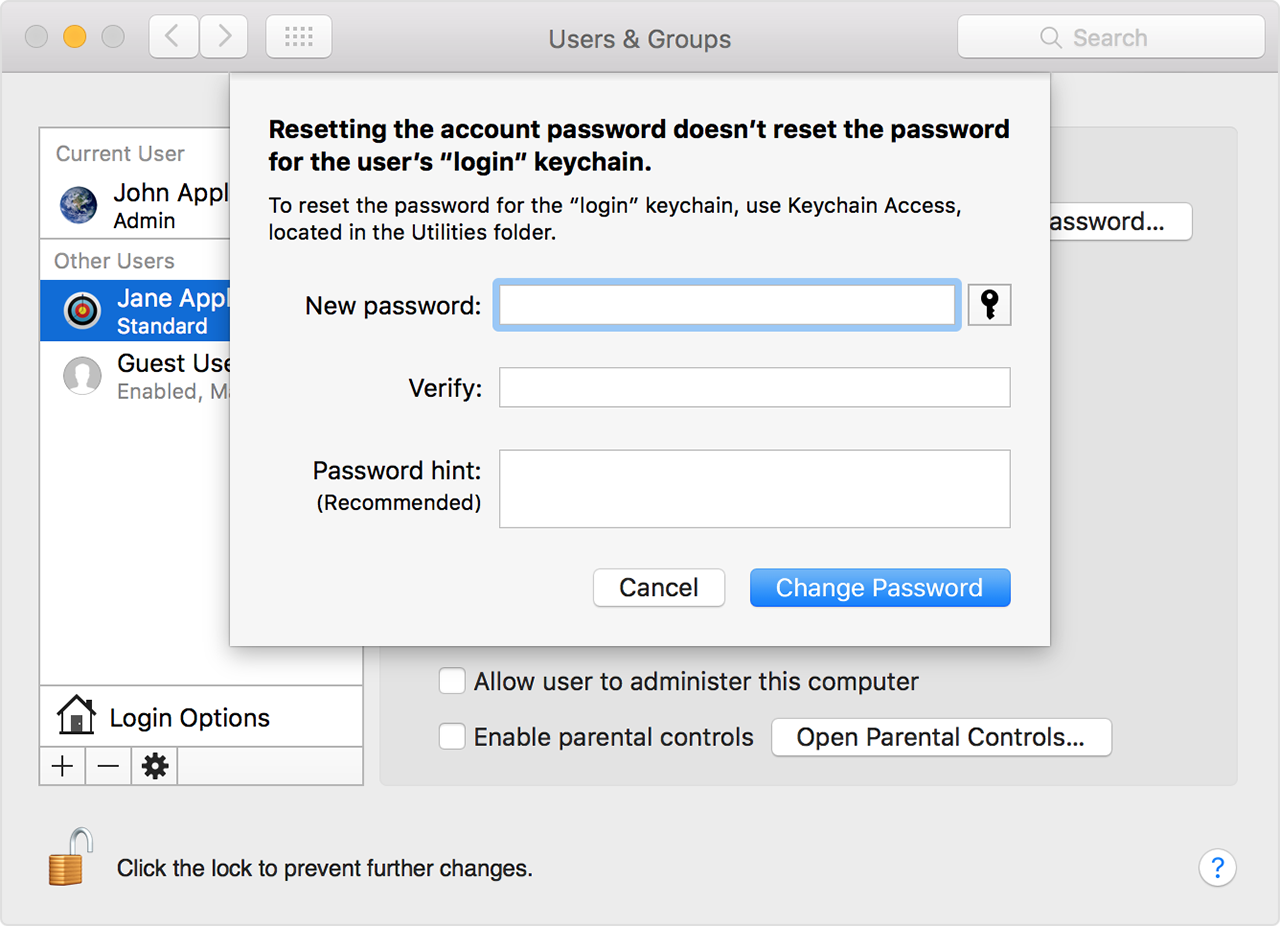
This is what i did and i hope it will help you too.
Jalal
Hello !
I have read your post and that is highly impressive , after entering the command in terminal , click on enter , Apple ID would be written , click on forgot Apple ID and don't enter the password , do you know upcoming steps , if yes please post .
I have a MacBook Pro. I upgraded to High Sierra with no apparent problems. Now I cannot log into my computer. When I turn it on I see the normal gray screen with my name and picture. I enter my password here and start up continues. Then I get another login screen where my name doesn’t appear. If I enter my name and password, it is not accepted. I do no have FileVault enabled. Anyone know how to fix this?
Have the same problem after the last Sierra update with many users... Tis is a bug somewhere in the update...
But it is prompting to enter Apple ID password and if I click on forget password , if you know the complete exact steps , please post .
Hi Don,
I’m surprised that didn’t work. 🤔 Glad to hear that you fixed it.
BUT im not updated and afraid you try again.
Somehow the computer lost my entire profile and there err no accounts to log into. The rep said he thinks FileVault was the cause of the problem
Durging the Sierra upgrade, Apple requires you to create a new login password for your OS that is different from your password for iCloud. Be sure to use this new password not your iCloud password. I think people are thinking they created a new iCloud password and are using the old password to try to open the OS. Use the new password you created for the OS.
Simple Fix
Had the same problem and it is a simple fix.
1. restart your computer
2. when it "chimes" hold down "command" and "R" until a menu pops up.
3. Go to "Utilities" at the top of the page menu bar
4. Go to "terminal"
5. In the terminal type "reset password"
6. Follow the instructions. You may need you Apple ID. My Administrator account does not have an Apple ID, so I just reset the Administrator password without needing an Apple ID.
If you are not able to sign in with other accounts on your computer, go to your administrator account and make sure to uncheck "Enable parental control" for those accounts in under "System Preferences"-"Users and Groups". Then the other accounts should work find.
This worked for me.
Hello !! wing
I tried in my system see some steps if it helps you .
Change admin password in Mac OS Sierra .
Close all applications and shut down the computer , press command , R and power key simultaneously , release only power key and keep on holding command and R key until apple logo appears , the bar starts loading let it be completed .
Select the language as English , go to utilities on top menu bar > Utilities > Terminal execute a command resetpassword and click on enter key .
Window appears , select your admin name it will prompt to enter Apple ID and password .once you enter the credentials , two options will be shown ( a ) previous ( b ) next , click on next .
Some fields will appear .
New password ……….
Verify password ……….
Password hint ……….
Enter your new password in two empty fields and keep password hint as empty ( optional ) .
Then it will prompt to restart the computer , so after restarting the machine .
A window will appear on your desktop .
( a ) continue login .
( b) create new keychain .
( c ) update keychain password .
Click on update keychain password , then log out from your computer .
When you again login in the fields enter your “ admin name “ and “ old admin password “ , so that new password will be updated with login keychain .
Hence , you have changed the admin password with the help of recovery mode only .
Hi wing,
Did your computer display any other messages after upgrading, but before the login window?
For instance some sort of message about being managed?
Have you tried a safeboot?
IF that doesn't work, have you tried recover mode?
Cannot login after macOS sierra upgrade